• Logo
    PaperBananaAI Academic Illustration Generator
Home
  • Home
  • Studio
  • Scientific Illustration Generator
  • Poster Maker
  • Diagram Maker
  • Figure Editor
  • Pricing
My Creations
  • My Creations
  • Invite Friends
LogoPaperBanana
HomePromptsBlogPricingInvite Friends
  1. Home
  2. Tools
  3. Data Visualization
  4. Histogram Maker
PaperBanana

PaperBanana - AI-powered academic illustration generator

support@paperbanana.me
All Tools

Tool directory

AI Figure Tools

  • Scientific Illustration
  • Graphical Abstract Maker
  • Scientific Poster Maker
  • Scientific Diagram Maker
  • Scientific Figure Editor
  • Prompts

Research Diagrams

  • Conceptual Framework Generator
  • Neural Network Diagram Generator
  • PRISMA Flow Diagram Generator
  • CONSORT Flow Diagram Generator

Graphic Organizers

  • Graphic Organizer Maker
  • Frayer Model Maker
  • KWL Chart Maker
  • Cause and Effect Graphic Organizer
  • Compare and Contrast Graphic Organizer
  • Spider Diagram Maker
  • Plot Diagram Maker
  • Syntactic Tree Generator
  • Sentence Diagram Generator
  • Punnett Square Maker
  • Venn Diagram Maker

Math & Physics

  • Factor Tree Generator
  • Number Line Generator
  • Force Diagram Maker
  • Bohr Model Maker

Data Visualization

  • Histogram Maker
  • Waterfall Chart Generator
  • Scientific Color Palette Generator
  • Sankey Diagram Generator
  • Scatter Plot Maker
  • Dot Plot Maker
  • Forest Plot Maker
  • Funnel Plot Maker
  • Kaplan-Meier Curve Maker
  • Box Plot Maker
  • Heatmap Generator
  • Volcano Plot Generator
  • Phylogenetic Tree Generator

Image & Submission

  • Journal Figure Checker
  • Image Format Converter

© 2026 PaperBanana. All Rights Reserved.

Support

  • About
  • Blog
  • Pricing
  • Contact

Legal

  • Privacy Policy
  • Terms of Service
  • Acceptable Use

From numeric data to a readable distribution

Histogram Maker: Turn Numbers into a Clear Distribution

Histogram Maker turns numbers or a frequency table into a chart in seconds. Compare bin sizes, check every count, and export the chart with its calculations.

  • No signup or watermark
  • Raw data & frequency tables
  • Compare bin rules
  • PNG, SVG & bin CSV

Your data → your distribution

Input format

Paste up to 10,000 numbers. Separate with commas, spaces or new lines; use decimal points, no thousands separators.

Chart settings
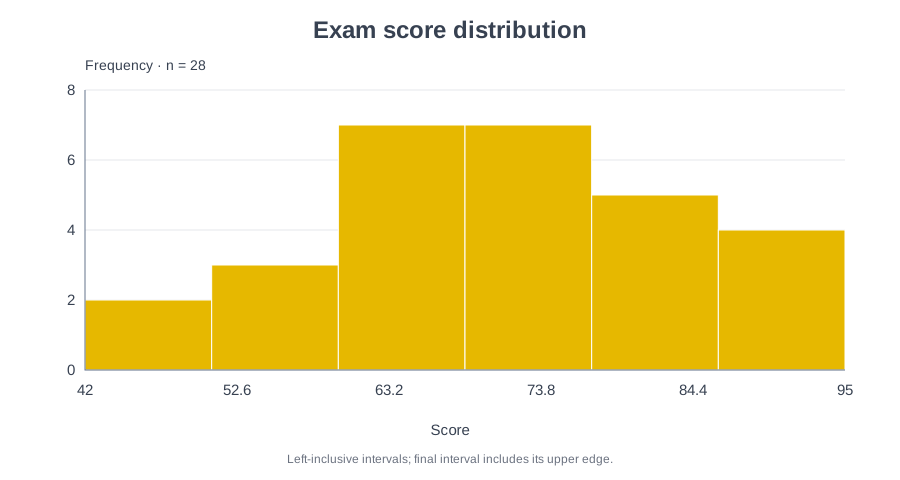
28 observations6 binsMean: 70.9286Median: 71.5Sample SD: 13.372
Exam score distributionFrequency · n = 280246842 to 50.8333: 2 observations50.8333 to 59.6667: 3 observations59.6667 to 68.5: 7 observations68.5 to 77.3333: 7 observations77.3333 to 86.1667: 5 observations86.1667 to 95: 4 observations4252.663.273.884.495ScoreLeft-inclusive intervals; final interval includes its upper edge.

Count check: 28 / 28 observations accounted for. Automatic bin rules are capped at 60 bins.

Calculated in your browser. No signup, no server uploads, no watermark.

Compare bins, review outliers & save calculation notes
Inspect bin boundaries & frequency table

[a, b) includes a and excludes b. The final interval includes both edges. Grouped means are estimates; individual observations cannot be recovered.

Calculated histogram intervals and counts
IntervalFrequencyPercentDensity
[42, 50.833333333333336)27.14286%0.226415
[50.833333333333336, 59.66666666666667)310.7143%0.339623
[59.66666666666667, 68.5)725%0.792453
[68.5, 77.33333333333334)725%0.792453
[77.33333333333334, 86.16666666666667)517.8571%0.566038
[86.16666666666667, 95]414.2857%0.45283

Need a scientific illustration for your paper?

Turn your research methods, mechanisms, and workflows into clear figures with paper banana.

See the shape of your data

An Online Histogram Maker for Numeric Distributions

A histogram groups numeric observations into intervals and shows how often values fall in each interval. It helps you see clusters, skew, spread and gaps that are difficult to spot in a spreadsheet.

Unlike a bar chart for separate categories, a histogram uses numeric intervals along the horizontal axis. Choose bin settings that suit your reader, because a different bin width can reveal a different pattern.

01

Start with observations

Paste a column of measurements, scores or response times, or import a CSV or text file.

02

Choose meaningful intervals

Use an automatic rule, specify a bin count, or enter a fixed width in your data’s units.

03

Verify before exporting

Inspect interval boundaries, counts, percentages and densities alongside the chart.
Histogram Examples You Can Edit

These charts use the same sample data and calculation engine as the tool. Select one to load its data.

One variable, many questions

Histogram Maker for Study, Research and Data Analysis

Explore a numeric variable before choosing your next analysis.

Histogram of 28 student scores grouped into exam score intervals

Compare exam score ranges

Teachers can see which score intervals contain the most students. Adjust the bins to show the difference between fine detail and a broad summary.

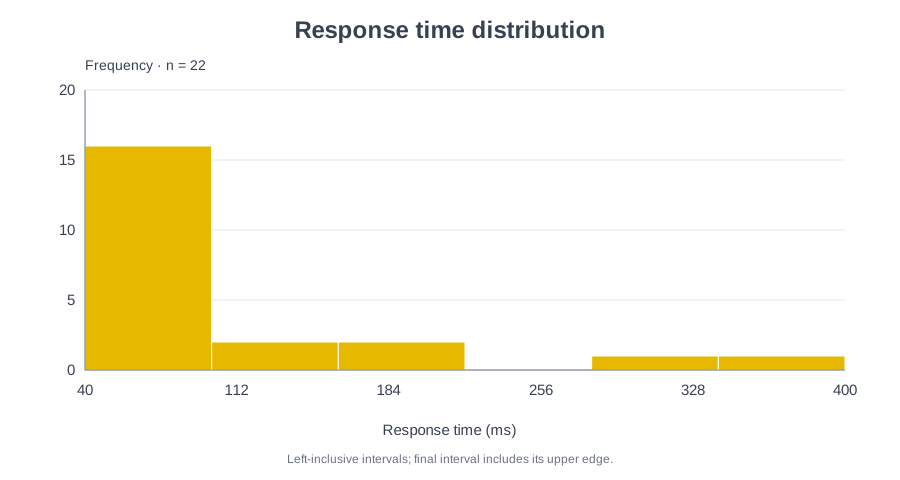
Right-skewed response time histogram with a long tail of slow responses

Inspect response time skew

Performance analysts can look beyond the average to see whether a few slow responses form a right tail. This example uses illustrative millisecond data.

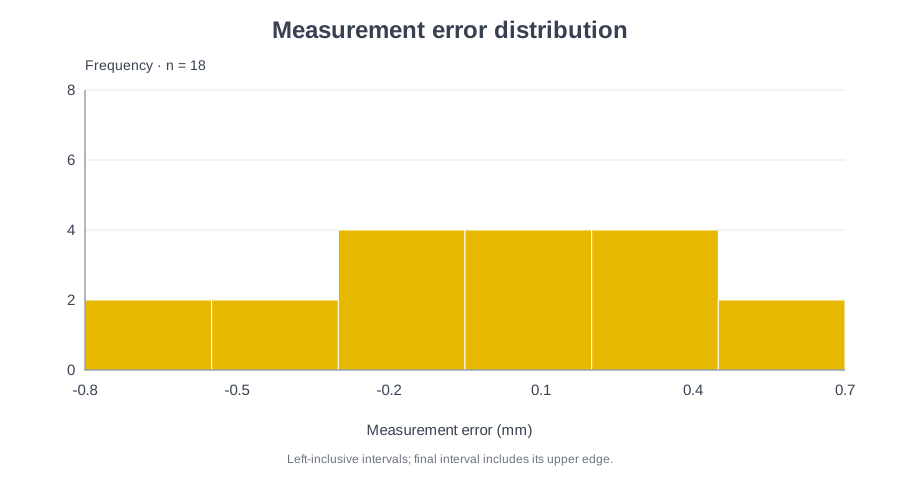
Histogram of negative and positive measurement errors around zero

Review measurement variation

Researchers can plot positive and negative deviations around zero. Use the mean, median and sample standard deviation from raw data to describe the variation.

Built for the data you already have

Make Histograms from Excel Values or Grouped Data

Paste raw observations from Excel or Google Sheets, or enter a grouped frequency table. Check your chart without building a spreadsheet chart first.

Turn Excel or Google Sheets values into a chart

Copy numeric cells directly, paste a comma-separated list, or import a single-column CSV. The tool supports up to 10,000 raw observations.

Try Histogram Maker with Your Data
Response time histogram calculated from a column of numeric observations

See how bin choices change your distribution

Choose Sturges, square-root or Freedman–Diaconis automatic bins, or set a manual bin count or width. Automatic suggestions are capped at 60 bins. If the interquartile range (IQR) is zero, the tool falls back to Sturges.

Try Histogram Maker with Your Data
Exam scores grouped into equal-width bins with counts on the vertical axis

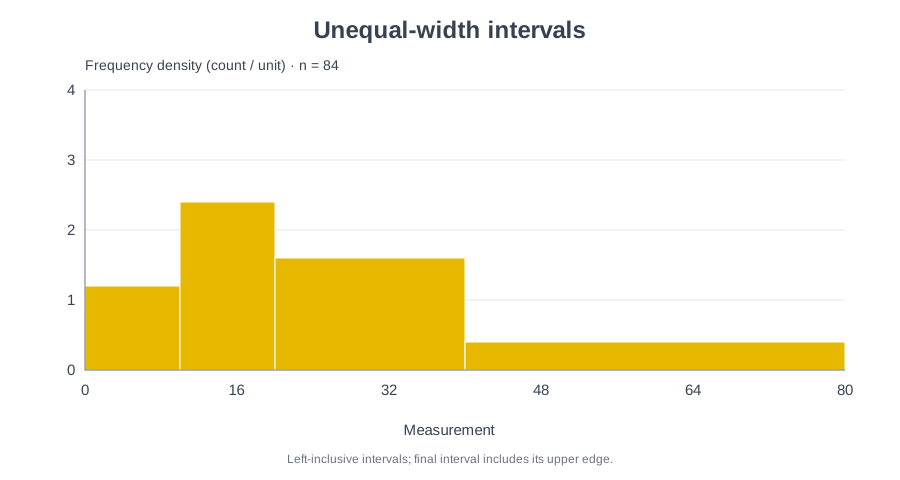
Handle unequal interval widths correctly

Enter grouped lower and upper bounds with frequencies. Unequal intervals automatically use frequency density, so bar area matches frequency.

Try Histogram Maker with Your Data
Grouped histogram with unequal interval widths and frequency density heights

Explore the choices behind the chart

Compare Histogram Bins, Review Outliers and Keep Your Method

Open “Compare bins, review outliers & save calculation notes” below the preview. These checks show how binning changes the chart and record what the chart actually shows.

01

Compare three binning rules on the same scale

Preview Sturges, square-root and Freedman–Diaconis bins side by side, using the same observations, range and frequency scale. Apply any available rule to the main chart in one click. The tool discloses zero-IQR fallbacks and the 60-bin cap. Different bin counts can reveal or hide structure, so no rule is presented as the best.

02

Flag possible outliers without deleting data

With at least four raw observations, check Q1, Q3 and the 1.5 × IQR fences. Quartiles use linear interpolation at sorted index (n−1)p. Flagged values stay in the histogram. A flag is a prompt to review a value, not proof of an error. For zero-IQR samples, the tool shows an explicit caution.

03

Copy or download calculation notes

Save the current main chart’s sample size, bin rule, actual intervals, scale formula, descriptive statistics, outlier flags and complete bin table as plain text. Keep this record with your original dataset. Grouped inputs keep their supplied intervals and use midpoint-based mean estimates, so raw-data rebinning and individual outlier flags are unavailable.

Compare Bins in Histogram Maker
Show your working

A Histogram Maker You Can Check Bin by Bin

The chart and the downloadable frequency table use the same calculations. You can see exactly where each interval starts and ends.

Clear boundaries

Intervals include their lower edge and exclude their upper edge, except the final interval, which includes its maximum. Raw-data bins account for every accepted observation exactly once.

No hidden data cleaning

Invalid numbers, overlapping grouped intervals and negative frequencies trigger an error. Fix the input before you export.

Clear statistics for grouped data

The grouped-data mean uses interval midpoints and is labeled as an estimate. Exact median and sample standard deviation appear only for raw observations.

Unequal-width histogram using frequency density so bar area represents frequency
Calculated example: intervals 0–10, 10–20, 20–40 and 40–80, with frequencies 12, 24, 32 and 16.Density = frequency ÷ interval width

Ready for your next document

Download Your Histogram Chart and Frequency Table

A practical workflow for assignments, presentations and exploratory analysis.

Local calculation

Keep data on your device

Calculations run in your browser. Pasted values and imported files are not sent to a server.

Three export formats

Export the chart and its evidence

Download a 1800 × 960 PNG, a scalable SVG, or the calculated bin table with counts, percentages, cumulative counts and densities.

Readable labels

Label your chart clearly

Edit the chart title, axis label and bar color. Choose frequency or percentage for equal-width bins, or frequency density.

Paste. Adjust. Verify.

How to Make a Histogram Online

The preview updates immediately as you edit valid data.

01

Paste your numeric data

Choose Raw data for individual values, or Frequency table for rows of lower bound, upper bound and frequency. Paste data or import a CSV or text file.

02

Choose bins and labels

Use an automatic bin rule or set a count or width. Open Chart settings to edit the title, axis label, scale and color.

03

Inspect and export

Check that the bin counts match your sample size. Open the frequency table, then download PNG, SVG or bin CSV.

Open Histogram Maker
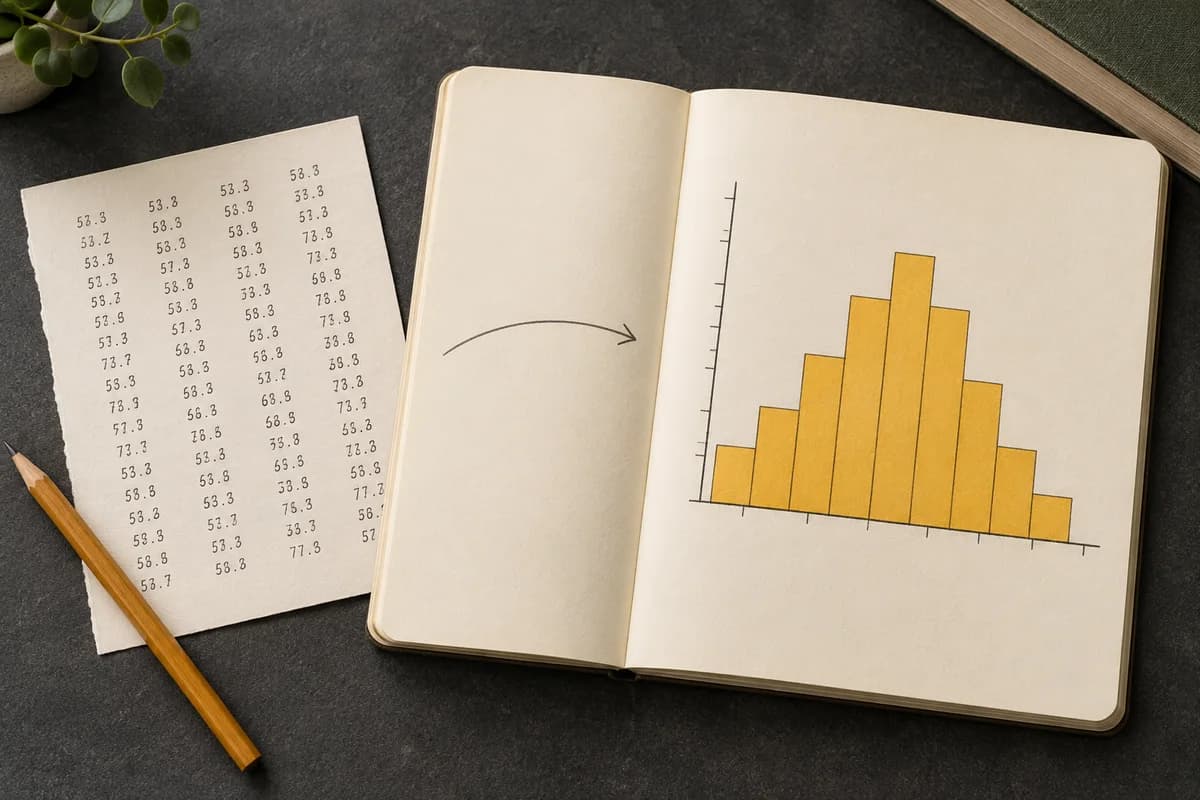
Conceptual editorial illustration of a notebook histogram and numeric observations
Conceptual illustration. The interactive chart above is calculated directly from your input.

Explore your data from another angle

More Tools for Scientific Data Visualization

Use a different view when your question calls for it.

View All Tools
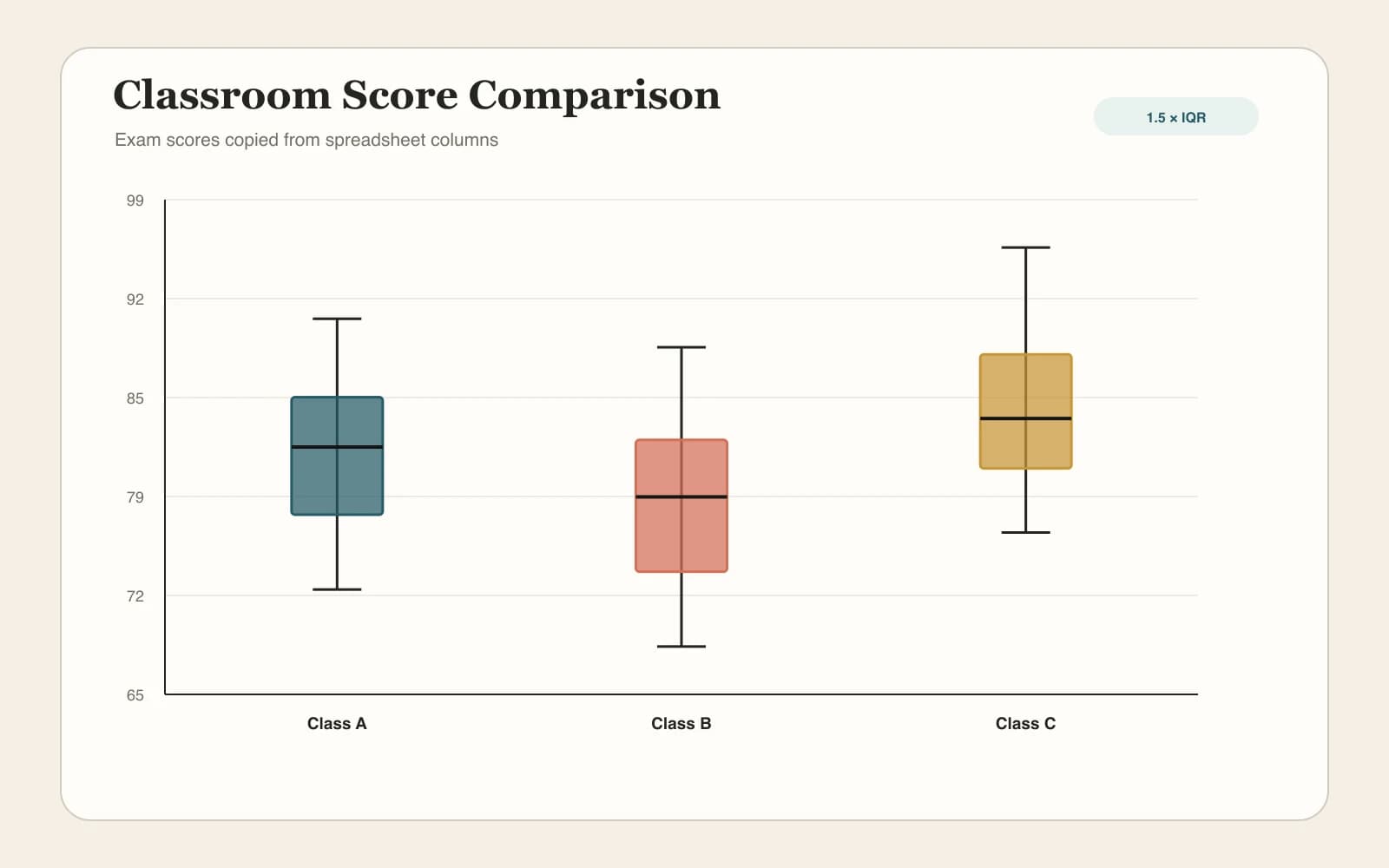
Box Plot Maker

Box Plot Maker

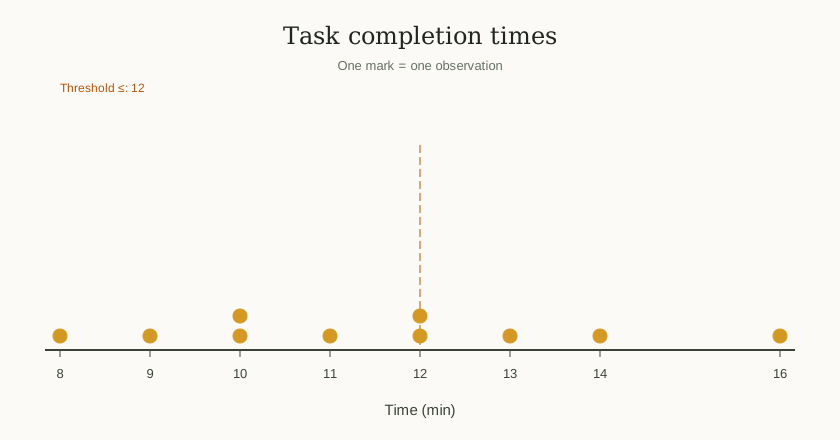
Dot plot of individual completion times on a numeric scale

Dot Plot Maker

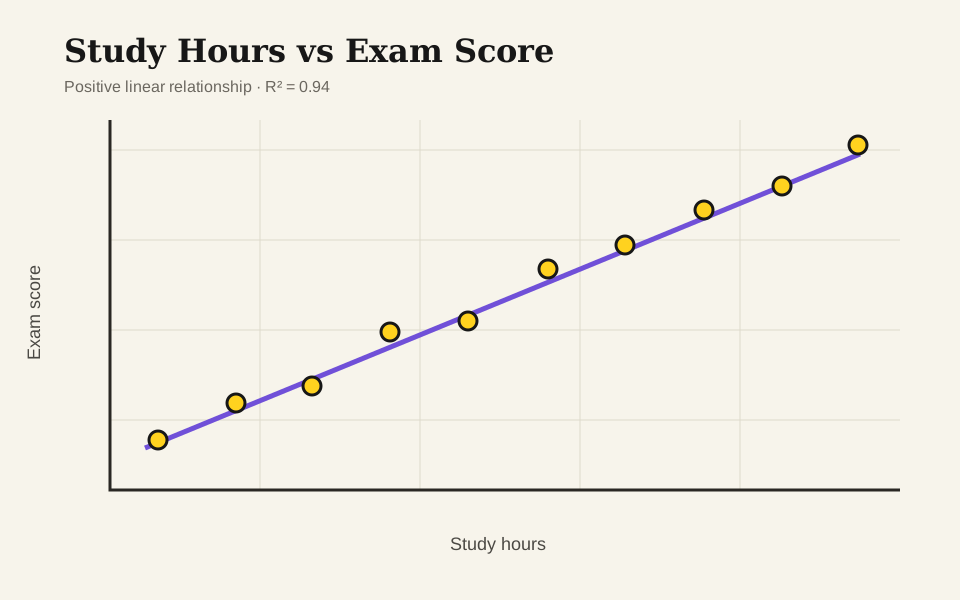
Scatter plot comparing study hours with exam scores

Scatter Plot Maker

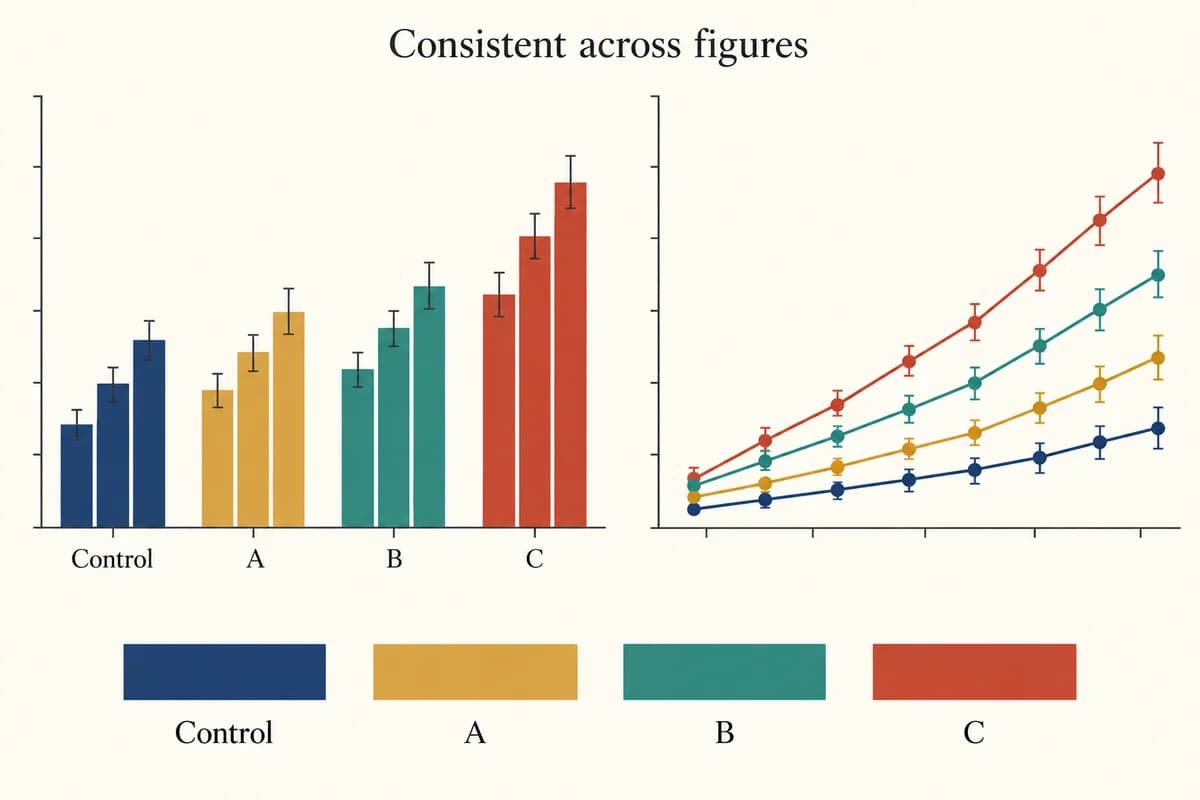
Scientific Color Palette Generator

Scientific Color Palette Generator

Questions about histogram charts

Histogram Maker FAQ

How do I make a histogram online for free?+

Paste numeric values or load an example, then adjust the bins and check the counts. Download the chart as PNG or SVG, or save the frequency table as CSV. No account, payment or watermark is needed, so you can export results right away.

How do I use a histogram maker with Excel or Google Sheets data?+

Copy one numeric column from Excel or Google Sheets into Raw data, or export the column as a CSV and import it. An optional header is accepted, and the limit is 10,000 observations. Native XLSX files are not supported, so paste the values or use a single-column CSV.

How does a histogram maker turn a frequency table into a chart?+

Choose Frequency table and enter each interval’s lower bound, upper bound and frequency on its own line. Intervals must be ordered and must not overlap, and frequencies must be non-negative whole numbers. Unequal widths automatically use frequency density. Grouped data cannot be rebinned because the original values are unknown.

How do I compare histogram bin sizes and choose a bin width?+

Open the analysis panel to compare Sturges, square-root and Freedman–Diaconis previews on shared axes. Then apply a rule or enter a manual count or width. Automatic suggestions are capped at 60 bins. No bin rule proves normality or suits every dataset, so compare the patterns carefully.

How do I calculate relative frequency percentages in a histogram?+

Choose Relative frequency (%) in Chart settings for equal-width bins. Each bar shows the interval’s count divided by the total number of observations, multiplied by 100. Unequal grouped intervals use frequency density instead, so bar area still represents frequency. The bin table also includes percentages.

How do I download a histogram as PNG or SVG without a watermark?+

Download PNG at 1800 × 960 pixels, or SVG for resizing without losing sharpness. Both formats use a white background and have no watermark. You can also export the bin table as CSV, with interval boundaries, counts, percentages, cumulative counts and densities.

How do I detect outliers in a histogram without deleting data?+

With at least four raw observations, the analysis panel flags values outside the 1.5 × IQR fences and keeps every value in the chart. It shows quartiles, fences and input positions. Flags suggest records to review; they are not proof of errors. Grouped frequency tables cannot identify individual outliers.

How do I export histogram calculations for a report?+

Copy or download calculation notes from the analysis panel. The notes record the chart settings, boundary rules, sample size, scale formula, descriptive statistics, outlier flags and the full bin table. Keep your original dataset separately, because the notes do not replace the source observations.

Let your data show its shape

Make Your First Histogram

Start with an example, replace the values with your own, and export a chart you can check.

Start Histogram Maker Now